Tuesday, October 8, 2013

REVIEW: Clicker Sentences by Crick Software


Clicker Sentences by Crick Software (iPad, $26.99 at time of review)


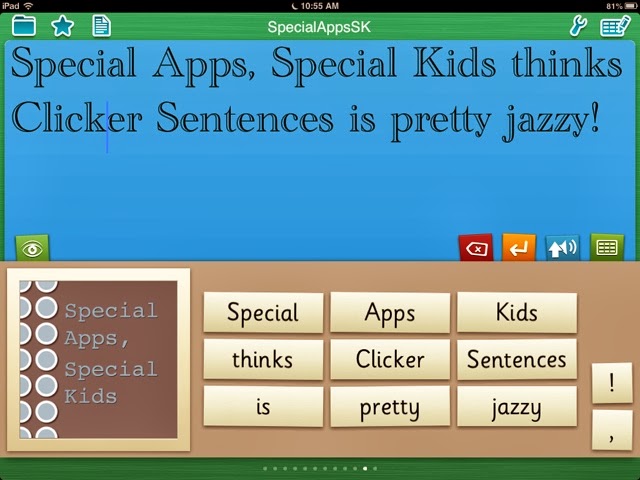
Clicker Sentences from Crick Software supports beginning writers in assembling sentences; Sentences can be hidden completely with a spoken model provided, temporarily displayed for copying before a child begins writing, or shown permanently for students who need a visual model shown to copy. Picture Support is also an option. Once punctuation is added, the sentence is read aloud, or words can be read individually as well. This app has access to many Sentence Sets via an integrated "LearningGrids" site- sets are downloaded and run from within the app.  The app runs in landscape or portrait mode.


What I like:

Very User Friendly
Text To Speech (choose from American, British and Australian voices)
"LearningGrids"site with downloadable sentence sets
Supports Landscape and Portrait Mode
"Show Touches" feature - a bright yellow circle works as a virtual "pointer" by appearing when the screen is touched- the student can use it to help keep his/her place while reading.
Visual Support- ability to insert pictures
Dropbox Integration

Clicker Sentences is User Friendly! 
I love how there is a built-in tutorial, as well as a set of ready-to-use examples to refer to when you are first exploring the app.  The interface is very easy to navigate as well- the screens are uncluttered, and there are easy-to-understand icons indicating where to access features.


The Sentence Grids themselves each have four tabs along the top for text to speech, qwerty keyboard, backspace and enter keys. A student can easily switch back and forth from a Sentence Set in the Sentence Grids or the keyboard tab. One thing to note is the keyboard does not have parentheses (See Wish List). My favorite grid feature, aside from the word by word text to speech, is the visual support. You can program each Sentence Grid to have one picture to the left of the words in the grid. Tapping this picture will insert it into a document.


Flexible Settings & Features
The app does not assume the level of support your student or child needs.  There are flexible settings where you can change what level of scaffolding is used.  For example, you can choose to include a model sentence for a child to copy, or hide it completely. You can set whether the sentence model is given verbally too. You can also set that sentence guide as a "pop-up" if desired. 


There are also options to alphabetize the words in the Sentence Sets, put them in random order, sentence order or guided order. In Guided Order, the word the child should tap is in focus, while the others have a semi-transparent layer of color over them to indicate they are incorrect choices.  When in Guided Order, the words can only be tapped in the correct sentence order.

Entering data is a breeze too, with easy-to-follow instructions and time savers- you can paste sentences from outside of the app by tapping the "Paste Sentences" button in the top left hand corner of the editing screen- this will bring up whatever is in your device's Clip Board. You can take a photo or insert an existing photo into each Sentence Set here too. You can easily change the order of the sentence sets by dragging them into a new order. Also, if you have found one format that works consistently for a student, you will be pleased that there is a button to make all documents you have in the app uniform quickly- the "Apply Settings to All Grids" button. These settings to edit/format documents for students are found by clicking on the Grid icon in the top right hand corner
Accessibility Features
There are quite a few features, including two that can be controlled under Settings>Accessibility.   
If you have "Show Touches" enabled in settings, a transparent yellow circle will show on the screen where you have touched it.  This is really helpful for knowing if your touch was successful

at selecting a button, or to help with following along during reading.   To enable it, go to

Settings> Accessibility> Show Touches.   A second feature, "Swipe Grids", allows you to swipe between word grids in the app.  If the swiping is an issue, it can be turned off in Settings> Accessibility> Swipe Grids.  If Swipe Grids is set to Off, arrow icons will show in the lower hand corners.  You must press the arrows to access additional Sentence Grids in this mode.  The Settings tab also has options to control Appearance, Speech,  and Highlighting. There is a Help tab with written instructions as well.


Appearance

Choose from a variety of fonts, sizes, and colors.  You can control the background color for the document, and the grids, but not the actual word buttons themselves (See Wish List). 
 
Clicker Sentences can be run in Landscape or Portrait Mode!
 
Speech
You can choose from three voices (Heather, North American; Rachel, British; Tyler, Australian) and also choose a Slow, Medium or Fast rate of a speech for each voice.  You can choose whether each sentence is spoken (signaled by a period added) or each word is spoken as it is entered.

 
Highlighting

You can set the color of highlighting for each spoken word in Settings> Speech> Highlight Color.


Easy Access/ Sharing of lessons

There is a very handy tab (look for the Star Icon) that allows you to search Favorites, or Recent Sentence Sets to bring up a lesson.
Documents can be sent via email or printed, if you have a wifi enabled printer. There are several ways to share via email- you can attach the actual Clicker Document, convert and attach as a Text File, or paste the document's text into the email itself. Clicker Sentences has Dropbox integration, which is a huge plus, especially when dealing with multiple devices.


Best of all, Clicker Sentences includes access to "Learning Grids". This is a free service you must sign up for, but once you are registered you will not need to log in again- You register right from the app, and can then access a set of free, downloadable Sentence Sets. It is very easy to quickly download an activity and start using it right away.

 
Wish List:
Allow more than one picture per sentence grid.
Allow word button colors to be changed (you can change Grid background and document background colors only; Qwerty Keyboard is red only)
Include a specialized Dyslexia font.
Where are the parentheses on the keyboard?
Spell Check*. 

*If you need Spell Check, take a look at another app from Crick Software, WriteOnline, geared toward slightly older users.


For a comparison of Reading & Writing Support Apps, view HERE:


Tuesday, October 1, 2013

REVIEW: iReadWrite by Texthelp, Ltd.


iReadWrite by Texthelp, Ltd. ($19.99 at time of review, for iPad )


iReadWrite is an adaptive app geared toward struggling readers and writers.   Users have access to a variety of tools within the app, including text to speech (TTS), predictive text, spell checking and homophone checker, a dictionary with picture icons and auditory support, customizable color schemes and fonts, and choice of voices.  The app also supports sharing and importation of other documents.


What I Like:

Text to Speech (3 voices to choose from)
Dual Text Highlighting
Word Prediction
Extensive offline dictionary feature with auditory support
Picture symbol support for many dictionary words
OpenDyslexia Font
Use of Voiced Navigational Cues to guide user
Easy document sharing
Flexible Settings

Features:

TTS / Text to Speech-   The text entered into the app can be read back to you, either automatically, or by selecting the play button.  There are three text to speech voices to choose from- Jill, Samantha (who sounds a lot like Siri, in my opinion), or Tom.  All are easy to understand.  I do wish there were settings to adjust rate of speech and pitch, if desired.


Dictionary Feature-The Dictionary feature is accessible in Writing mode or within Spell Check mode by long pressing on a word.   I was impressed with the scope of the dictionary.  There is an extensive collection of words in the dictionary, and definitions as well as sample sentences for the different parts of speech for a word are included.  You can also adjust the settings to have the definitions voiced automatically, or you can use the play/stop buttons on the screen.  Picture symbols are included for many of the words for further support.

Word Prediction-A list of words will pop up on the left of the screen as you type. You can also access suggested words for previously entered text by placing the cursor to the right of a word. You can touch a word from the list once to hear it voiced, and touch a second time to replace the current word in front of the cursor. You can also use a swiping action across a desired word to insert it into a text (Choose "Swipe to Insert" in Settings).  Long press to access a voiced definition of the word with picture symbol support. (See Dictionary Feature above). You can also use the native iOS "auto-correct"- if this is turned on in your iPad's settings suggested words will pop up and automatically be inserted when the keyboard's space bar is tapped.

Spell Check- The Spell Check feature is easily accessible through the main tool bar, and will also light up red during Writing mode, if a spelling error has been made.  When the Spell Check feature is enabled, a list of words will be offered for words that need to be reviewed.  The Spell Check includes homophones like knew/gnu/new or bate/bait.   The student can tap a word once to hear it, or do a long press to bring up the dictionary feature, if hearing the voiced word alone did not help the user choose the correct spelling.  

 Incorrect spellings or incomplete words are displayed in red (default color, or set your own).  Homonyms are displayed in blue (default color, or set your own). Tap a word from the list twice to replace an incorrect word.  As with word prediction lists, you can also use a swiping action across a correct word from the Spell Check list to select and replace an incorrect word. (Choose "Swipe to Insert" in Settings)

You can still also access the native iOS dictionary feature within the app by long pressing a word when while in Writing mode, then choosing Define.


Custom Spellings- The "Add Spelling to Dictionary" feature accessible via the keyboard will allow you to add a word that is not recognized by the Spell Check.   If a word has been added, it will not be shown as incorrect when a Spell Check is done.

After selecting a word, you can choose "Add Spelling to Dictionary". We tried this with some unusual spellings my son enjoys using on a regular basis, such as Obi Wan Kenobi. Kenobi now pops up when "Kenob" is typed in. Alternatives such as "ken obi" and "canopy" are still offered if the cursor is placed after the word, but the word will not be singled out as incorrect during a Spell Check.   I would love to somehow add these new custom words to the app's dictionary too- so that our own unique definitions for a word can be brought up with a long press.

Customizable Color Schemes. Highlighting and Font Choices
The color schemes in iReadWrite can be tailored to each individual's needs. Not only can you can set the background color and font color for words, there is also a feature called dual text highlighting- each sentence is highlighted in the color of your choice as it is read aloud, while each voiced word is read in a second color as the cursor moves through the sentence. This is really helpful for readers who tend to lose their place while reading.You can change the background color, font color, and set the highlighting colors for word and sentences separately. The color picker makes it really easy to pick the exact color you want.

There are a variety of fonts to choose from, including my favorite, the OpenDyslexia font, a font designed to be easier to read by people with dyslexia.  Fonts can be adjusted from 8 pt. to 36 pt.- I would love to see the font size increased significantly to better assist users with low vision.
 
 
Voiced Navigational Cues

iReadWrite will alert the user to a change in mode via voiced cues such as when a user taps Spell Check, Writing, or Adding of a New Document. The voiced cues can be turned on/off in the settings by tapping the "Screen Reading" option.

 
Sharing of Documents

Share the documents you create via email, messaging or Facebook; You can also copy data into other program. This is really handy for making sure your child's assignments get to his/her teacher!


Wish List:

A larger font size ( fonts adjust from 8 pt. to 36 pt.- the font size seen in screenshots is 36 pt.)
Ability to adjust spacing between words.
Ability to add our own custom words and accompanying images to the app's dictionary- perhaps the user's own special words could be added, with a custom definition and ability to add an image for each new word.
Ability to save Default Settings or "Profiles" for several different users.  Currently you can restore settings to the Default Setting only.
Ability to add additional definitions to existing words in the dictionary.
Settings to adjust rate of speech, pitch


Tuesday, September 24, 2013

Malawi Special Needs Project


This summer I was given the opportunity of a lifetime-I was invited to Malawi to visit some friends doing missionary work at a place called Hope Village. Malawi is a country in Southeast Africa; it borders Mozambique, Zambia and Tanzania. 

 After seeing our friends' pictures and hearing stories about the families they met there and their hopes to help children in their village who have special needs, I was hooked- here I was complaining about how difficult it was to meet the needs of my children with challenges, while these kids literally had next to nothing.  One of the pictures they showed me was of a child using a plastic lawn chair with wheels attached to get around.   You can see that picture here .  

Thanks to credit cards with airline miles, and relatives with time share weeks, we made plans to come to Malawi.  Another friend that I had known from high school, and his wife joined us as well.   Determined to bring over as much as we could carry, I put a notice in my district's department newsletter asking for unneeded special needs supplies to bring to Malawi.  Thanks to a lot of caring people, we brought communication devices, Boardmaker software, PECS symbols, Velcro, flash cards, puzzles, books, stickers and a few toys, among other things.  We brought two suitcases full of supplies, and managed to squeeze a few more things in to our friends' luggage and carry-ons as well.


I also brought my iPad mini loaded with some AAC apps and specialized learning apps to try with the children.  Since I didn't want to mess with my Speak For Yourself app, I  programmed Speech Hero AAC with some words in Chichewa, so I could communicate with the locals more easily.  Speech Hero got the job done, although writing out the words phonetically so that the speech engine could voice them correctly was quite a task.  


Upon arriving to Hope Village, the first step for us women was to put on our chitenjes.  A chitenje  a colorful piece of fabric that is often worn as a wrap/skirt, and every woman must wear one to be modest.   Our friend Leanne lent us some chitenjes during our stay, and I picked one out at the local market to take home as well.  Although warned, one thing we were not truly prepared for was the weather. Or the mosquitoes for that matter.  Malawi's winters can get very hot, and its summers even hotter.  Well, at least where we were.  I am confident it hovered around 100 degrees during our Malawian winter stay.  The mosquitoes loved me.  Cross fingers, no malaria yet.


Life is not easy for most Malawians. Their day starts very early, before the sun comes up. The children are expected to help out at a very young age. Farming is a way of life for many.  Water must be carried a long way, in buckets on their heads. There are very few cars. Babies are worn on their mothers' or siblings' backs. Produce and materials all must be carried by foot, bicycle, or as we saw closer to the capital of Malawi- Lilongwe- ox-driven carts. 

Poverty is a very serious issue.  Many people are struggling just to survive. Many children wear rags for clothes- if they are lucky to have a school uniform, that may be their only outfit.  The monthly salary is about $30 a month, which with recent inflation, barely covers the cost of buying a month's worth of corn flour to feed a family.

While mud bricks just cost a few pennies each, many families save for years to be able to build a better home. We visited in the winter, when food was more plentiful, and did still see children with signs of starvation and malnutrition- swollen bellies and rotted teeth. In the coming months, as it gets hotter, life will become harder for many. A lot of families with children with special needs will not be thinking about how to help their children communicate. They will be trying to put food in their stomachs.


Our friends had asked us what we wanted to do while we were in Malawi; we were especially eager to see daily life in the village. We met many villagers and learned a lot about Malawian life. We went to the local market and had fresh grilled corn and the most delicious "french fries" with cabbage and tomato. We helped out at the medical clinic, learning how to administer malaria tests, and do data entry.

We visited Annie's Closet, a charity set up to clothe villagers who are in need of clothing or shoes. Our friend led a church youth group meeting. We also made an unusual visit to a witch doctor, and met "Spirit Dancers" from a neighboring village. We handed out stickers, bracelets and small toys to children in the villages.

We visited a neighboring village and checked in on a young friend who had a leg deformity.   He had had a homemade shoe brace fashioned to compensate for his shorter leg and turned in club foot.  This brace was allowing him to walk better.  

We were invited to the youth computer classes, where Eric led a class on using Microsoft Word and Excel. Many of the youth had never used a computer before. He showed them my iPad and explained that it was also a computer, but that all of its components were in one package, unlike the desktop computer with its monitor, CPU, keyboard and mouse. No one had operated an iPad before, but everyone was eager to try. The teens in the local church youth group enjoyed looking at pictures of our friend Tim's youth group in San Diego. The children in the village were equally intrigued by our phone cameras.  


While there is electricity available in Hope Village and in the main city an hour and a half away, electricity is a privilege that these young people did not have in their homes. I was glad I had brought some batteries for the communication devices and glad for the donated PECS books- no recharging!

We spent quite a bit of time setting up a communication book for one of the children in the village. This little boy, "J" is such a cuddle bug and always on the go. His parents report he had just spoken his first word soon before we visited.

J's method of communication has been pulling someone toward the item he wants.  I showed his parents how to use the PECS system, and also held a mini training with our missionary friends so that they would be able to support this family in helping him to communicate after we returned home. This is especially important as children with special needs here do not receive services of any kind. There is no ABA, no speech therapy, occupational therapy, music therapy, vision therapy or hippotherapy.  I remember at the beginning of our autism journey how scared I was about my son's future.  Going to support groups and listening to other parents' stories about their experience with autism was so important to me. There are no support groups specifically for autism available to J's parents.  I can imagine how lost they must feel and how nice it must have been to connect with someone who understood. Talking to them and realizing the things we had in common halfway around the world was important for me too.  Two updates on my favorite little one in Malawi who has stolen my heart: http://www.gillsinmalawi.com/apps/blog/show/32058841-little-joshua
http://www.gillsinmalawi.com/apps/blog/entries/show/35014720-joshua-s-class


I met "S", a little girl with Cerebral Palsy, several times and learned that there had been many recent positive changes for her. One of the changes was that she had started attending school in the morning, whereas previously she had to stay behind as she was too heavy to carry.  Now she was able to come in a wheelchair.  Our friends were thrilled to see her so much happier and being able to participate. To keep her entertained while she was waiting at the Medical Clinic, I showed her a game several of my students enjoy,   Big Bang Pictures by Inclusive Technology Ltd.  "S" had never played with an iPad before, but understood  this cause and effect game, laughing at each new animation she set into motion.  After seeing "S" be successful at activating an iPad mini, my hope is that more time will be set aside very soon to see if she has enough hand strength to control one of the donated communication devices.  We are hoping to track down a CD player too, as there were many wonderful music therapy CDs that would be perfect for "S" and her peers to learn from.  There is even a switch to hook up to the player so "S" can participate in turning on the music during circle time. 
 
Hope Village may have received some very important special needs items, but I think what I received was much more. Despite the lack of resources, Malawians have a lot of hope and a lot of heart. The people of Malawi certainly have my heart! (If it were not for the mosquitoes and very real threat of malaria, I might have sent for the kids and relocated!)


Do you want to help? Read more here