A
SASK member asked specifically about TTS (Text-To-Speech) Apps for an individual with ALS, so I have gathered some information here. TTS apps are also of great benefit to other populations in the special needs community, including those who have extreme difficulties with handwriting, or who have dyslexia, for example. (One of my favorite apps for children with special needs is Abilipad. For now I will focus on TTS apps (and devices) for communication, although there is certainly crossover and a variety of users may benefit from the apps mentioned below.
It is also important to say that getting an assistive technology evaluation from an impartial professional who will consider both dedicated and nondedicated devices for communication is highly recommended- be aware that there are physical (and other) limitations that may rule out an iPad as an assistive device for a particular user, and likewise a dedicated device may not be the right choice either, especially if there is no insurance to pick up the bill. With a condition like ALS, these needs may need to be reevaluated as there may be new physical changes to factor in. There really is no one magic formula to meet every communicator's needs, so just because it is "good" does not guarantee it will be a good fit for you.
Here is an article that may be useful, as it delves into the difference between dedicated (strictly for communication) and nondedicated systems (like the iPad).
http://www.alsa.org/als-care/augmentative-communication/
Also it is important to figure out the user's needs. Some of the TTS apps are more robust than others, including predictive text for example. For a user who has neurotypical cognition but simply cannot use his voice, predictive text/word prediction is likely going to be very useful for communicating efficiently. This is great if you need this level or type of support, but if you don't, an app with less frills may be just right for your needs. If there are physical limitations, that may rule out a device or an app as well. Something to keep in mind.
TTS Devices
There are many TTS devices out there but I am especially excited about a device I ran across at the ISTE Exhibit Hall called the Forte. It has a lot of features, with a small price tag:
The
Forte from Writer Learning (formerly Advanced Keyboard Technologies, Inc.)

I had written about how it is a keyboarding device that would be fantastic for students who struggle with handwriting or dyslexia, spelling etc. It could be also used as an AAC device- it has text-to-speech and even allows the user to enter custom shortcuts/
key strokes such as ty for "thank you" or gb for "I need to go to the bathroom". It also has word prediction, ability to import documents into the device for completing classroom assignments (or personal documents) and much more... seriously in love with this ! One thing I almost forgot to mention is how incredibly light the device is- it seemed much lighter than an iPad and did I mention AFFORDABLE! About half of the price of an iPad. Once you start looking around at other options, you will see this is a very good price for this kind of device.
Here is a short list of some other dedicated devices for text to speech communication. These are by nature expensive devices i.e. thousands of dollars, so you probably would need funding through medical insurance. They typically also have accessibility features such as scanning, that some of the less expensive options may not offer: http://www.spectronicsinoz.com/product/text-to-speech-communication-devices
TTS Apps for the iPad
Here are some of the TTS apps on the iPad that I have tried or that others have recommended as useful for communicative purposes:
Grid Player. FREE and quite impressive. Now available on iPhone and iPod touch also!


Text-to-speech and predictive text capabilities and options with or without picture support. The voice is British. (Update: you can choose from American English or a variety of other languages as well) You cannot make changes to the free sets in this app. You can purchase software called The Grid 2 to accomplish this. In fact with the software you can do much more- Facebook, Twitter, playing of videos etc. There is a big price tag, but it looks like a good investment if it is otherwise the perfect fit, and that software can be purchased to use on an array of devices other than the iPad. More info here:
http://www.sensorysoftware.com/home.html
Predictable (currently $159.99)
Also on GOOGLE PLAY (Android)
 Predictable has a unique input option: handwriting!
iTunes excerpt:
Predictable
is an exciting text-to-speech application for the iPad, iPhone and iPod Touch. Offering customisable AAC functions with the latest social media integration, Predictable sets a new benchmark. Using a word prediction engine and switch access, Predictable meets the needs of a wide range of people using AAC.
A wide range of people are using Predictable, including those with MND / ALS, Cerebral Palsy and people with communication difficulties after a stroke or head injury.
Chatable (currently $79.99, will be $159.99)
 iTunes excerpt:
A new wave in augmentative communication from the award winning app developers, Therapy Box.
Create and use symbol based grids…or use photos to make visual scene displays. Or, take both and create a hybrid page. The possibilities are endless with ChatAble. ChatAble is an easy to use communication aid app for people with communication difficulties who benefit from symbol and photo support. Parents, teachers and therapists can create page sets in minutes with an intuitive set up. The customisation options are extensive to enable people with a range of physical, cognitive and language abilities the opportunity to use the app to communicate at home, school or with their family and friends.
RocketKeys (currently $159.99)
 iTunes excerpt:
RocketKeys
is an amazingly customizable talking keyboard for people with speech disabilities. This powerful app lets you build the perfect keyboard by choosing the exact keys, size, layout, colors, prediction, and voices you want. And because
RocketKeys understands touch input from users with unsteady or imprecise hands, it is very physically accessible.
RocketKeys is an essential communication tool for both children and adults with Aphasia, Autism, Cerebral Palsy, Parkinson's, ALS, MND, and more.
Verbally Premium (currently $99)

 Verbally is a text-to-speech communication app that can also be used for other purposes, such as writing support.
The
FREE version is a very robust app with text-to-speech and predictive text. It also has a grid of commonly used words at the top to choose from as you type, as well as some preprogrammed phrases. No doubt about it- Verbally is a very useful tool, but if it is going to be used on a daily basis- and most certainly if it is being used as a primary communication device- you will want to upgrade to Verbally Premium for maximum benefit.
Verbally Premium uses higher quality, customizable voices, you will be able to save your favorite phrase to reuse again and again, and your conversation history will be accessible. This is particularly important to pull up recent comments that may be handy again, such as specific comments that would be useful to access at a restaurant, the doctor's or in the classroom. You can also email from within the app too (More on that later!) The latest update also allows you to more quickly delete multiple items from the history, and turn the history feature on/off at any moment, to maintain privacy.
Re: the "Favorite Phrases" feature: I have Verbally Premium set up to show other parents at presentations how they might use it- I used my son's information as an example - his likes and dislikes and emergency info. There is now a "Help" category added, with a snippet saying, "I am lost, can you call _______ at _______ please", along with other important safety information. I've also added many conversational phrases including ways to request, protest, agree etc. However, the "Favorite Phrases" feature goes beyond input of short personalized phrases and sentences. It also allows the user to insert snippets of
any length into a button.
Developer comment: "There is no limit to the amount of text you can have in a favorite or in any text area. There is also no delay in speaking no matter what the length of the text string is. The free voices do have a delay if it's a long phrase, but the premium voices are fine."
An unintentional use I have discovered for myself is for composing emails to parents and educators who have asked for general information about app resources for special needs. I copied a series of links and pasted them into a custom "Favorites" button. Later, I touched the button, then touched the email button and brought up my email to type an address, voila- email sent with 30 different resources for a parent! So there you go- it can be a wonderful tool for efficiency as well. The developer confirmed that Verbally Premium has even been used to recite poetry and give speeches.
I am sure this has been used often for lengthy introductions at a meeting, when going around the room to share where you are from, what you do, what are your interests etc. Similarly, for a literate child, this could be effective for participating in activities such as circle time.
EZSpeechPro (female version) (currently $99; also for iPhone and iPod;
Android version available)

 EZSpeechPro
is from
Gus Communications, Inc., the maker of
TalkTablet (an image based AAC app) and comes in a Female or Male version. The description says it was specifically designed for literate users who have lost the ability to speak as a result of ALS, cancer, stroke etc. I have not tried this but its Share-A-Phrase features looks very useful- users can retrieve phrases contributed from other users and save for use in their device. It has high quality voices.
It doesn't appear to have predictive text.
More how-it-works info here:
http://gusinc.com/2012/EZ_Speech_for_iPad_iPhone.html
Something to Say , currently $5.
 Something to Say
(not to be confused with
So Much 2 Say, which is a wonderful option for emerging communicators who need a picture based communication system) is an app that organizes non-picture based, text phrases into categories. Each category can be assigned a picture to serve as a visual, but it is a text based communication system that draws on a "bank" of phrases- the user enters his/her favorites and stores them in the way that is most accessible to him/her, with the pictures serving as visual support for each category of phrases. The voice options are great- super clear and easy to understand. It could be a great low-cost option for someone who
does not need predictive text but who would benefit from (minimal) visual support.
Abilipad (currently $19.99)
 Abilipad
is an app I often use for educational purposes that can be used for communication. It has text-to-speech, word prediction, and a spelling engine that can be turned on or off. If you are willing to put in the time for programming, it also allows for the user to create custom keyboards and notepads, which can be shared too. I love using this because it allows insertion of pictures both in the notepads and as actual keyboard buttons, but it can be used strictly with word buttons of your own design as well. The colors and sizes of keys can be customized too.
AppWriter US (currently $19.99)

This is a newer app and it is still on my wish list. I am sure I will be keeping an eye on this in the future as an app primarily for writing support, actually. I've included it here as it does have predictive text and text-to-speech, but one of its most intriguing features is a special font for dyslexics called Dyslexie. It also has the capability to highlight text as it is being read.
And a here's a favorite of mine, a fun but functional "in the realm of text-to-speech" app:
Fat Cat Chat Repair Currently 99 cents.

I love this app because it does what no other communication app in the App Store does, to my knowledge- it focuses entirely on phatic speech or "small talk" that you can use on the spot, in a tweet, email, IM, Text/SMS. It allows the user to quickly choose between similar social phrases that have subtle changes in meaning- For example pushing the "slow down" symbol allows the user to then select from 15 different word choices for "slow down", such as "Hold on" or "Wait" or "Let me think". Tapping the "I don't understand" symbol allows choices such as "I don't get it", "Where are you going?" "I don't follow you" etc. This means no more "canned speech". For a person who has the cognitive awareness to make these distinctions, this is an important tool to communicate effectively. I only wish that this app included features such as predictive speech and custom saved phrases to make this the ultimate non-picture based social communication tool!
No predictive text or custom phrases, but definitely fills a niche, and less than a cup of coffee! It will speak out the built in phrases within the app, but not your own text that you add. (I wonder if the new voice over on iPad 3 would work with this however...)
Also worth mentioning:
Sorenson BuzzCards (FREE. also for iPhone and iPod touch).

This app was made for the deaf community and has no sound but I can see it being very useful in loud crowded places where a typical TTS app may not be heard. Program the app with your favorite phrases, then load a phrase from a saved category, and it will display, taking up the full screen! This is great to have for the specific situation described above and it is free.
Maybe Yes Maybe Not:
iSpeech Free, but with in-app purchases
There are in-app purchases for a variety of different voices; it comes with a free UK voice and a free US voice (both female). The female voices are actually very nice, but the main issue I found problematic was size. Small font. Small Save button to store custom phrases. Small Speak button to speak your phrases. Small everything! I am viewing this on the iPad so perhaps it wouldn't be so blatantly obvious on an iPhone or iPod, but boy are those buttons tiny! I could see this being an issue for someone with motor difficulties or vision issues. Hmm. There is also no Clear button. You have to use the backspace to erase what you have written in the text box. You can copy/paste saved audio phrases into the main text box, which is handy.
There is no predictive text and it requires Internet to create novel phrases (Saved phrases can be accessed offline)
 Clicker Sentences from Crick Software supports beginning writers in assembling sentences; Sentences can be hidden completely with a spoken model provided, temporarily displayed for copying before a child begins writing, or shown permanently for students who need a visual model shown to copy. Picture Support is also an option. Once punctuation is added, the sentence is read aloud, or words can be read individually as well. This app has access to many Sentence Sets via an integrated "LearningGrids" site- sets are downloaded and run from within the app. The app runs in landscape or portrait mode.
 Clicker Sentences is User Friendly!


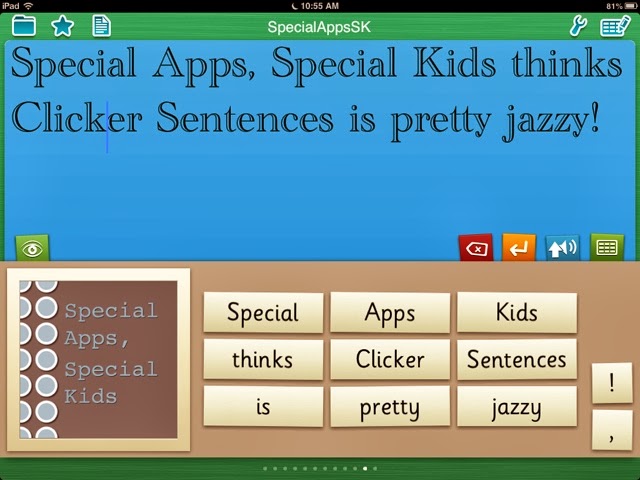


 Best of all, Clicker Sentences includes access to "Learning Grids". This is a free service you must sign up for, but once you are registered you will not need to log in again- You register right from the app, and can then access a set of free, downloadable Sentence Sets. It is very easy to quickly download an activity and start using it right away.


 Best of all, Clicker Sentences includes access to "Learning Grids". This is a free service you must sign up for, but once you are registered you will not need to log in again- You register right from the app, and can then access a set of free, downloadable Sentence Sets. It is very easy to quickly download an activity and start using it right away.


