Tips & Suggested Apps for Reluctant Readers
Use voice technology to assess reading ability
 .Read Along
 by Ottercall INC. There is a
Read Along Spanish option too. The reader will need clear articulation for the technology to be effective, and the stories right now could improve, but this app did encourage my son to read aloud. For a similar app practicing words only, try
Sight Words - The Future of Flashcards by
Sprite Labs.
Let the child "decide"

Remember the "Choose Your Own Adventure" books?
Brush of Truth by
Story Bayou might be just the techie answer for encouraging a love of reading. From iTunes description: "You choose how the action folds in this interactive book app for kids 8-12. Geared to third through sixth graders, Brush of Truth, told in "your" voice, has 65 decision points and 20 possible endings."
Julie Landry Laviolette, founder of Story Bayou, Inc., is a parenting journalist, mom, and educational book app developer who created the book app, Brush of Truth, to appeal to reluctant readers. She has written several guest blog posts about the app industry, and about using non-traditional ways to engage kids in reading. Here are her suggestions for reaching reluctant readers: “Tips to Get Kids Reading”
Make it personalized

Some story apps have a record your own voice feature and/or the ability to change text.
I Don't Lie - Starring you - An Interactive reading app by Sparky Kids, Inc. allows you to create personalized avatars of your child. You can also personalize the story with your child's name, and record his/her own voice. The story is free to download, with a small in-app purchase (currently $2.99) to get the above features. The free version is ad-supported.
Love You to the Moon & Back, an interactive bedtime book for kids by Sue Shanahan (presented by Auryn) allows you to record your own voice and change the text of the story. It also has another neat feature highlighted below, "tap to label" - touch an object in the scene to hear and see its written label.
Use Musical Story Apps
 Cassandra the Cow
 by
Animalations is a huge hit with students, as are some of the apps from
Perplext - my favorite from this developer is
The Little Red Hen. The
Perplext apps have a great pause feature so we can stop and practice each part of the story at our own pace.
Make reading irresistibly fun

Here's a version of
Little Red Riding Hood that kids have a hard time saying no to:
Grimm's Red Riding Hood ~ 3D Interactive Pop-up Book by
StoryToys Entertainment Limited (there are more titles to choose from in this series, you can see them all
here.) Each story has interactive elements and related games embedded in its pages.
More ideas for Struggling Readers
Try a story app with a Dyslexia-friendly font
 Three Billy Goats Gruff- An Interactive Children's Book by Backseat Driver, LLC
 This is one of five story apps from this developer (
Princess and the Pea,
The Three Little Pigs,
Jack and the Beanstalk, and
'Twas the night before Christmas); all of the apps offer a dyslexia font as an option.
Look for apps that highlight each word in the story as it is spoken.
A number of story apps do this. Read
this blog post and
this blog post for some places to start.
Try apps with a "tap to label" feature

Stories like
The Poky Little Puppy from
Random House allow the reader to teach each word of the story to hear it spoken.
Oceanhouse Media has familiar story apps that allow you to tap an image in the story to hear and see the label of that image.
Auryn Inc. also has many apps with this feature as well.
Use Modeled Writing with "Write to Read"

The app
Write to Read by
WriteReader Aps is perfectly named as it serves as a good reminder that you can become a better reader through writing. This app is a story maker that uses the child's invented spelling and a correct spelling model from an adult. You can insert a picture and accompanying audio on each page, with a place for the child to write and a spot for the adult to write the "translation" below. The finished stories can be printed out with the child's captions, the adult's or both.
Create your own stories

There are also a number of story maker apps or apps with story making components, which really warrant a separate blog post. Here are a few favorites:
Kid in Story Book Maker (by Locomotive Labs),
Storybook Maker (by Merge Mobile),
Little Story Maker (by GrasshopperApps.com), SEE BELOW "Make your own adapted stories and lessons"" for more customizable story apps.
Use audiobooks and ereaders.
 Bookshare
 has a vast library of books, textbooks, newspapers and periodicals for all ages and access in the United States is
FREE for qualifying schools, and students with a print disability or physical disability that impedes access to typical books.
Bookshare has its own app available,
Read2Go, and there are several other Bookshare-compatible apps in the App Store, including
Voice Dream Reader,
iReadWrite, and
firefly k3000.
For more information on Bookshare, and compatible apps, see here.
Consider Adapted Apps & Other Apps with Visual Supports
Premade Adapted Stories
A great online resource for adapted Boardmaker books (you will need the Boardmaker software) is
http://www.baltimorecityschools.org/site/Default.aspx?PageID=1446
 Marblesoft
 has premade readers with picture symbol support, including
A Leader Is and
My Country. These apps are switch accessible too. (for more switch accessible stories and games from
Marblesoft see
here; also take a look at
Inclusive Technology Ltd.)
 Attainment's Read to Learn by Attainment Company uses real photos for visual support and has features such as highlighting of words, auto page turn and more.
 The app has stories with graded comprehension exercises; the stories are divided into three categories: Safety Skills, Life Skills, Focus on Feelings. This app is capable of scanning and is switch accessible.
 iGet It Apps has premade apps with a diverse set of life skills topics such as "Going to the Beach", "People in My Community", "Going to the Playground", "Going to Birthday Parties" - view them all here, You can choose to customize each story with your own pictures, audio recordings and written labels.
 GrasshopperApps.com has several dozen premade (but customizable) story apps, such as 2nd Grade Reading - I Like Horses
 and
I Like Animals - Learning to Read Books - all 37 books are available in one app title I Like Books - 37 Picture Books for Kids in 1 App You can edit the audio recordings and words on each page- as well as embed "pop up" labels that show when a part of the image is touched. You can touch any word to hear it spoken. The apps also offer word highlighting.
Two more "general education" apps you may also find helpful for creating custom lessons: Bitsboard Pro and Sentence Maker.
Make your own Adapted Stories & Lessons

Create your own stories from scratch, with or without picture symbol support, using
Niki Story. This app has a unique feature that allows you to shrink your own images to make symbol sentence strips. You can then add your own media- including videos, or even draw your own images in the app. This app has a dyslexia font option (shown). You can use the app to create stories, and to read stories.
FULL REVIEW HERE
For a switch accessible story maker, try Alexicom Elements Story Maker .
 AutisMate
 - If you are looking for an app that allows you to create visual scenes and stories with picture, video, image and audio support and can also can serve as an AAC/ communication tool, this is worth a serious look.
FULL REVIEW HERE
 GoTalk Now
 by
Attainment Company is another versatile AAC app that allows you to create books and has a visual scene mode. You can even embed Internet links and music into app buttons. There is also a library of user created materials available.
 Scene Speak
 by
Good Karma apps is a fully customizable visual scene app that allows custom written/audio labels (with recorded or text to speech) to pop up when a designated area is touched. This is a flexible app with easy to use features. You can add images to the app via your iPad, or even use Google and Bing search.
 Abilipad
 is a custom keyboard app and much, much more. Create your own adapted keyboards for literacy support- you can use the customized keyboards to write within the app, with text to speech and word prediction. You can assign pictures to each keyboard's buttons and make them color coded, pick from a variety of fonts and record your own custom sounds for buttons.
More Writing & Spelling Supports
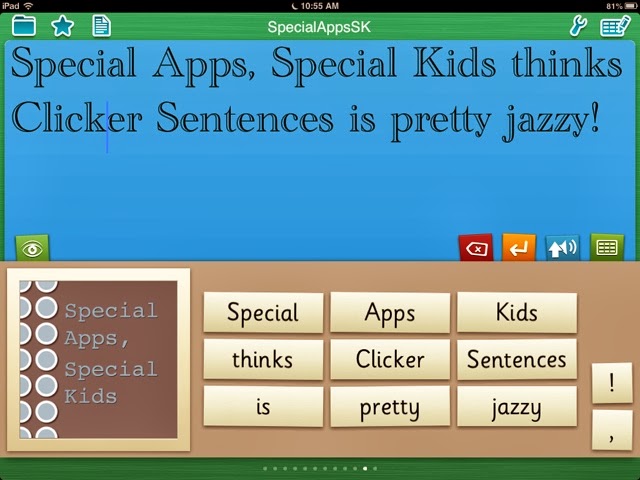
Crick Software is the maker of Clicker 6 and several other writing tools, including the app Clicker Sentences, featured above. For more information see here. Crick Software also has three writing support apps in the App Store:
 Clicker Sentences
 from
Crick Software supports beginning writers in assembling sentences; Sentences can be hidden completely with a spoken model provided, temporarily displayed for copying before a child begins writing, or shown permanently for students who need a visual model shown to copy. Picture Support is also an option. Once punctuation is added, the sentence is read aloud. This app has access to many Sentence Sets via an integrated "LearningGrids" site- sets are downloaded and run from within the app.
FULL REVIEW HERE
 Clicker Docs
 is a writing support app with several key features, including editable word banks with selectable keys, text to speech, and access to 50+ classroom writing resources (with free registration). These "LearningGrids" include "Story Setting Adjectives", "Adverb Bank", "Alternatives to Said". "Beach Words", "Communities A-Z", and many more. The resources are targeted to 7-11 yr. olds, the majority being for upper elementary.
FULL REVIEW PLANNED
 WriteOnline
 is a writing support app for ages 11 and up. This third app from Crick Software builds on its sister apps with more sophisticated vocabulary for older students, as well as word prediction capabilities, a talking spellchecker, and useful features like Dropbox support. The app also contains downloadable LearningGrid resources.
 Ghotit Real Writer&Reader 3
 is a software program for Mac, Windows or Linux (Update: it is available for
Android now too)
Ghotit Real Writer&Reader 3 is an integrated writing and reading solution comprising several advanced assistive technologies tailor-made for people with dyslexia, dysgraphia, and other specific learning disabilities. The solution helps children and adults with dyslexia and dysgraphia to write, read, and correct texts in any application and includes:
• Word-prediction with grammar and phonetics awareness
• Context-sensitive and phonetic spell checker
• Advanced grammar and punctuation corrector
• An effective proofreader
• Speak as you write (speech feedback)
• Integrated dictionary
• Reading assistance with dual highlighting
Ghotit Real Writer&Reader 3 can be used with any text editor or as a simple to use “Dyslexia Text Editor” at Windows (including tablets), Mac, Linux, and Android (tablets and smartphones).
For additional information visit Ghotit web site at http://www.ghotit.com
 iReadWrite
 by
Texthelp, Ltd. is an adaptive app geared toward struggling readers and writers. Users have access to a variety of tools within the app, including text to speech (TTS), predictive text, spell checking and homophone checker, a dictionary with picture icons and auditory support, customizable color schemes and fonts, and choice of voices. The app also supports sharing and importation of other documents.
FULL REVIEW HERE
For more iOS apps with spellchecking support take a look at Typ-O HD, Writing Buddy (iPhone/iPod), American Wordspeller or Spell Better VPP
You may also be interested in a previous blog post about Text To Speech /TTS apps and devices here and apps compatible with Bookshare, a FREE service for students in the United States who have a qualifying print or physical disability, here.
 Kidspiration Maps by Inspiration Software, Inc. ( iPad, $9.99 at time of review)

 Kidspiration Maps by Inspiration Software, Inc. is from the maker of Inspiration Maps (early version reviewed here) . It is a visual and interactive mind mapping and graphic organizer tool for kids, preloaded with activities divided up into the following categories: Reading & Writing, Social Studies, Science, and Math.