Clicker Sentences by Crick Software (iPad, $26.99 at time of review)
 Clicker Sentences
 from
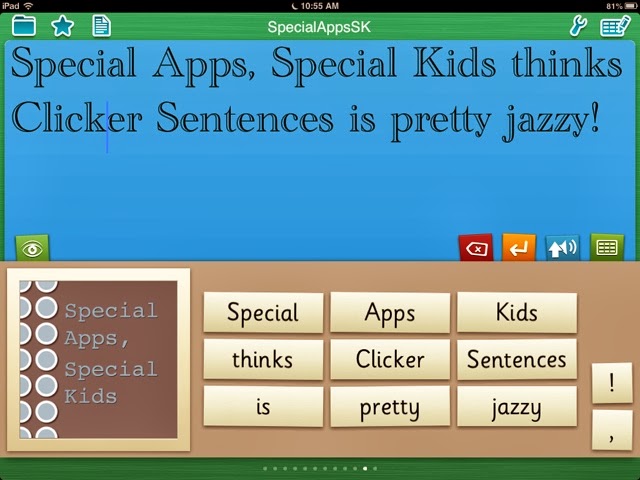
Crick Software supports beginning writers in assembling sentences; Sentences can be hidden completely with a spoken model provided, temporarily displayed for copying before a child begins writing, or shown permanently for students who need a visual model shown to copy. Picture Support is also an option. Once punctuation is added, the sentence is read aloud, or words can be read individually as well. This app has access to many Sentence Sets via an integrated "LearningGrids" site- sets are downloaded and run from within the app. The app runs in landscape or portrait mode.
What I like:
Very User Friendly
Text To Speech (choose from American, British and Australian voices)
"LearningGrids"site with downloadable sentence sets
Supports Landscape and Portrait Mode
"Show Touches" feature - a bright yellow circle works as a virtual "pointer" by appearing when the screen is touched- the student can use it to help keep his/her place while reading.
Visual Support- ability to insert pictures
Dropbox Integration
 Clicker Sentences is User Friendly!
I love how there is a built-in tutorial, as well as a set of ready-to-use examples to refer to when you are first exploring the app. The interface is very easy to navigate as well- the screens are uncluttered, and there are easy-to-understand icons indicating where to access features.
The Sentence Grids themselves each have four tabs along the top for text to speech, qwerty keyboard, backspace and enter keys. A student can easily switch back and forth from a Sentence Set in the Sentence Grids or the keyboard tab. One thing to note is the keyboard does not have parentheses (
See Wish List).
My favorite grid feature, aside from the word by word text to speech, is the visual support. You can program each Sentence Grid to have one picture to the left of the words in the grid. Tapping this picture will insert it into a document.
Flexible Settings & Features
The app does not assume the level of support your student or child needs. There are flexible settings where you can change what level of scaffolding is used. For example, you can choose to include a model sentence for a child to copy, or hide it completely. You can set whether the sentence model is given verbally too. You can also set that sentence guide as a "pop-up" if desired.
There are also options to alphabetize the words in the Sentence Sets, put them in random order, sentence order or guided order. In
Guided Order, the word the child should tap is in focus, while the others have a semi-transparent layer of color over them to indicate they are incorrect choices. When in
Guided Order, the words can only be tapped in the correct sentence order.
Entering data is a breeze too, with easy-to-follow instructions and time savers- you can paste sentences from outside of the app by tapping the "Paste Sentences" button in the top left hand corner of the editing screen- this will bring up whatever is in your device's Clip Board. You can take a photo or insert an existing photo into each Sentence Set here too. You can easily change the order of the sentence sets by dragging them into a new order. Also, if you have found one format that works consistently for a student, you will be pleased that there is a button to make all documents you have in the app uniform quickly- the "
Apply Settings to All Grids" button. These settings to edit/format documents for students are found by clicking on the Grid icon in the top right hand corner
Accessibility Features
There are quite a few features, including two that can be controlled under
Settings>Accessibility.
If you have "Show Touches" enabled in settings, a transparent yellow circle will show on the screen where you have touched it. This is really helpful for knowing if your touch was successful
at selecting a button, or to help with following along during reading. To enable it, go to
Settings> Accessibility> Show Touches. A second feature, "Swipe Grids", allows you to swipe between word grids in the app. If the swiping is an issue, it can be turned off in
Settings> Accessibility> Swipe Grids. If Swipe Grids is set to Off, arrow icons will show in the lower hand corners. You must press the arrows to access additional Sentence Grids in this mode. The Settings tab also has options to control
Appearance,
Speech, and
Highlighting. There is a Help tab with written instructions as well.

 Appearance
Choose from a variety of fonts, sizes, and colors. You can control the background color for the document, and the grids, but not the actual word buttons themselves (See Wish List).
Clicker Sentences can be run in Landscape or Portrait Mode!
Speech
You can choose from three voices (Heather, North American; Rachel, British; Tyler, Australian) and also choose a Slow, Medium or Fast rate of a speech for each voice. You can choose whether each sentence is spoken (signaled by a period added) or each word is spoken as it is entered.

Highlighting
You can set the color of highlighting for each spoken word in Settings> Speech> Highlight Color.
 Easy Access/ Sharing of lessons
There is a very handy tab (look for the Star Icon) that allows you to search Favorites, or Recent Sentence Sets to bring up a lesson.
Documents can be sent via email or printed, if you have a wifi enabled printer. There are several ways to share via email- you can attach the actual Clicker Document, convert and attach as a Text File, or paste the document's text into the email itself. Clicker Sentences has Dropbox integration, which is a huge plus, especially when dealing with multiple devices.

Best of all,
Clicker Sentences includes access to
"Learning Grids". This is a free service you must sign up for, but once you are registered you will not need to log in again- You register right from the app, and can then access a set of free, downloadable Sentence Sets. It is very easy to quickly download an activity and start using it right away.
Wish List:
Allow more than one picture per sentence grid.
Allow word button colors to be changed (you can change Grid background and document background colors only; Qwerty Keyboard is red only)
Include a specialized Dyslexia font.
Where are the parentheses on the keyboard?
Spell Check*.
*If you need Spell Check, take a look at another app from Crick Software,
WriteOnline, geared toward slightly older users.


For a comparison of Reading & Writing Support Apps, view HERE:
 Kidspiration Maps by Inspiration Software, Inc. ( iPad, $9.99 at time of review)

 Kidspiration Maps by Inspiration Software, Inc. is from the maker of Inspiration Maps (early version reviewed here) . It is a visual and interactive mind mapping and graphic organizer tool for kids, preloaded with activities divided up into the following categories: Reading & Writing, Social Studies, Science, and Math.